
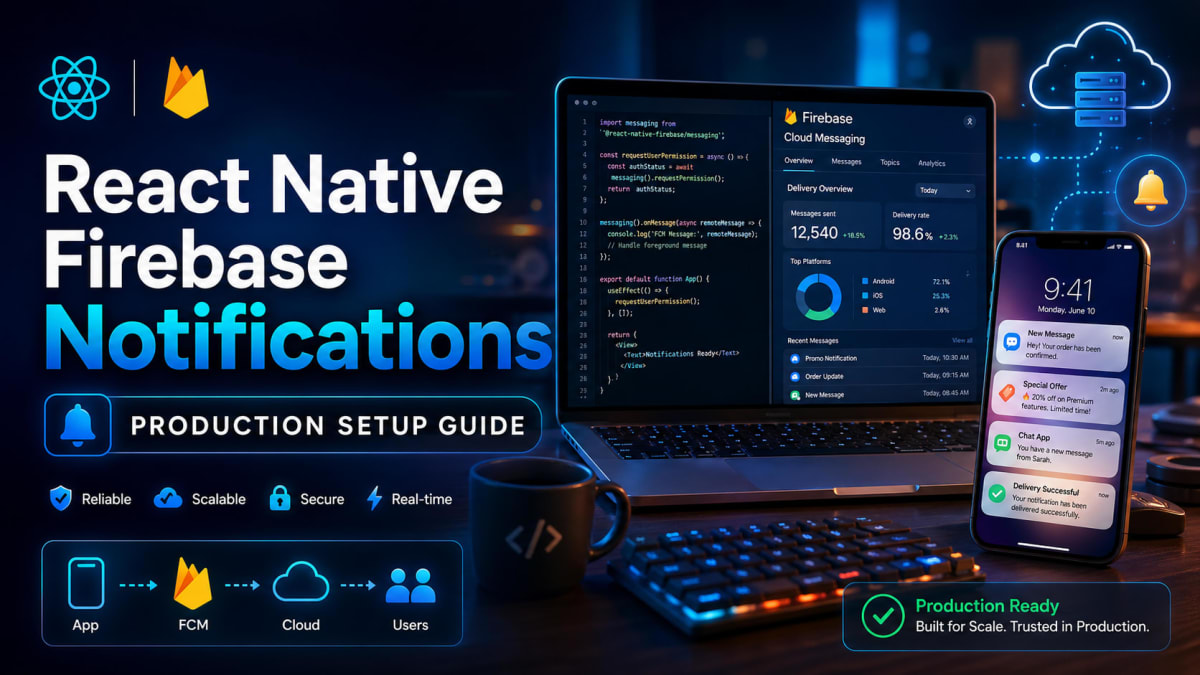
React Native Firebase Notifications Not Working? Fix It
Skilldham
Engineering deep-dives for developers who want real understanding.
Last Updated: July 2026
TL;DR - Quick Fix
react native firebase notifications not working - usually one of four reasons.
Checklist in order:
Step 1 - google-services.json correct location:
android/app/google-services.json  (Correct)
android/google-services.json      (Wrong - silent fail)
Step 2 - Android 13+ permission missing:
javascript
await PermissionsAndroid.request(
  PermissionsAndroid.PERMISSIONS.POST_NOTIFICATIONS
);
Step 3 - Notification channel not created:
javascript
await notifee.createChannel({
  id: 'default',
  name: 'Default Channel',
  importance: AndroidImportance.HIGH,
});
Step 4 - setupNotifications called before auth loads:
javascript
// Wrong: fires before JWT is ready
useEffect(() => { setupNotifications(); }, []);

// Correct: wait for user
useEffect(() => {
  if (!user?.id) return;
  setupNotifications();
}, [user?.id]);
Tested on: React Native 0.76+ - Android 13+ - Firebase 21+
You followed a tutorial. You installed the libraries. You added the configs. But notifications still don't show up on your phone - or worse, they work in development but break in production. The official docs feel scattered, and every blog covers a different piece of the puzzle.
This is the most common pain point with react native firebase notifications. The setup isn't hard, but the order matters. Miss one Gradle line, and your build fails silently. Skip the channel setup, and Android 8+ devices ignore your messages.
This guide walks through the complete production setup - the same one I shipped for Munshi, my personal finance app. By the end, you'll have notifications working in foreground, background, and killed states, with token registration, smart caching, and cleanup on logout. Let's build it.
Why React Native Firebase Notifications Need a Specific Setup
Before any code, understand what you're actually wiring up. Push notifications in React Native involve four moving pieces:
Mobile app registers a device with Firebase Cloud Messaging (FCM)
FCM returns a unique device token
Your backend stores that token and uses it to send messages
Firebase servers deliver the message to the device
Most tutorials only cover step 1. The reason react native firebase notifications fail in production is usually steps 2–4: token isn't synced to your backend, or it's stale, or the wrong handler runs in foreground vs background.
We'll cover all four, with code that runs in production. This is not a toy example.

Step 1: Install the Right Libraries
For a bare React Native project (not Expo), you need three packages working together:
bash
# Wrong — only covers half the setup
npm install @react-native-firebase/app
bash
# Correct — full notification stack
npm install @react-native-firebase/app @react-native-firebase/messaging @notifee/react-native
Each package has a job. @react-native-firebase/app is the core SDK that talks to Firebase. @react-native-firebase/messaging handles FCM specifically - token fetch, message receive, background events. @notifee/react-native displays notifications when your app is in the foreground (FCM doesn't auto-display in foreground, this surprises a lot of developers).
For more on choosing the right native dependencies, check the guide on React Native bare workflow setup. The official React Native Firebase docs confirm these three are the production standard.
Step 2: Add Firebase Configs to Android
Download google-services.json from your Firebase Console (Project Settings → General → Your Apps → Android). The file location matters more than you'd think.
bash
# Wrong location — this won't work
android/google-services.json
bash
# Correct location
android/app/google-services.json
Then update your project-level android/build.gradle:
gradle
buildscript {
    dependencies {
        classpath("com.android.tools.build:gradle")
        classpath("com.facebook.react:react-native-gradle-plugin")
        classpath('com.google.gms:google-services:4.4.4')
    }
}
And your app-level android/app/build.gradle:
gradle
apply plugin: "com.android.application"
apply plugin: "com.facebook.react"
apply plugin: 'com.google.gms.google-services'
That's the entire native config for react native firebase notifications. The library handles BOM versions and Firebase SDK linking automatically - don't manually add firebase-bom or firebase-messaging to your dependencies block. This was a common requirement in older versions but causes conflicts now.
Step 3: Set Up the Android Manifest
Open android/app/src/main/AndroidManifest.xml and add four permissions plus one meta-data tag.
xml
<!-- Wrong — missing modern Android requirements -->
<uses-permission android:name="android.permission.INTERNET" />
xml
<!-- Correct — production-ready manifest -->
<manifest xmlns:android="http://schemas.android.com/apk/res/android">
    <uses-permission android:name="android.permission.INTERNET" />
    <uses-permission android:name="android.permission.POST_NOTIFICATIONS" />
    <uses-permission android:name="android.permission.WAKE_LOCK" />
    <uses-permission android:name="android.permission.VIBRATE" />

    <application android:name=".MainApplication" ...>
        <activity android:name=".MainActivity" ... />

        <meta-data
            android:name="com.google.firebase.messaging.default_notification_channel_id"
            android:value="munshi_default" />
    </application>
</manifest>
The POST_NOTIFICATIONS permission is critical for Android 13+ (API 33). Without it, your react native firebase notifications will be silently dropped on newer phones - no error, just no notification. The meta-data ensures Firebase has a fallback channel if your code forgets to specify one.
Step 4: Create the Notification Service
Build a single source of truth for notification logic. This file handles permission, token fetch, and backend registration with smart 24-hour caching to avoid spamming your API on every app open.
javascript
// src/utility/notification.service.js
import { Platform, PermissionsAndroid } from 'react-native';
import messaging from '@react-native-firebase/messaging';
import AsyncStorage from '@react-native-async-storage/async-storage';
import DeviceInfo from 'react-native-device-info';
import apiClient from '../api/apiClient';

const STORAGE_KEYS = {
  LAST_TOKEN_SYNC: 'fcm_last_token_sync',
  CURRENT_TOKEN: 'fcm_current_token',
};

const TOKEN_SYNC_INTERVAL_MS = 24 * 60 * 60 * 1000; // 24 hours

async function requestNotificationPermission() {
  if (Platform.OS === 'android' && Platform.Version >= 33) {
    const result = await PermissionsAndroid.request(
      PermissionsAndroid.PERMISSIONS.POST_NOTIFICATIONS,
    );
    return result === PermissionsAndroid.RESULTS.GRANTED;
  }
  return true;
}

async function getFcmToken() {
  const authStatus = await messaging().requestPermission();
  const enabled =
    authStatus === messaging.AuthorizationStatus.AUTHORIZED ||
    authStatus === messaging.AuthorizationStatus.PROVISIONAL;

  if (!enabled) return null;
  return await messaging().getToken();
}

async function shouldSyncToken(currentToken) {
  const [lastSync, savedToken] = await Promise.all([
    AsyncStorage.getItem(STORAGE_KEYS.LAST_TOKEN_SYNC),
    AsyncStorage.getItem(STORAGE_KEYS.CURRENT_TOKEN),
  ]);

  if (savedToken !== currentToken) return true;
  if (!lastSync) return true;

  const elapsed = Date.now() - Number(lastSync);
  return elapsed > TOKEN_SYNC_INTERVAL_MS;
}

export async function setupNotifications() {
  const granted = await requestNotificationPermission();
  if (!granted) return { success: false, reason: 'permission_denied' };

  const token = await getFcmToken();
  if (!token) return { success: false, reason: 'token_fetch_failed' };

  const needsSync = await shouldSyncToken(token);
  if (!needsSync) return { success: true, reason: 'cached' };

  try {
    const deviceInfo = `${DeviceInfo.getBrand()} ${DeviceInfo.getModel()}
 - Android ${DeviceInfo.getSystemVersion()}`;
    await apiClient.post('/notifications/register-token', {
      token,
      platform: 'android',
      deviceInfo,
    });

    await AsyncStorage.setItem(STORAGE_KEYS.LAST_TOKEN_SYNC, String(Date.now()));
    await AsyncStorage.setItem(STORAGE_KEYS.CURRENT_TOKEN, token);

    return { success: true, reason: 'registered' };
  } catch (err) {
    console.log('[Notifications] Backend register failed:', err?.message);
    return { success: false, reason: 'backend_failed' };
  }
}

export function listenForTokenRefresh() {
  return messaging().onTokenRefresh(async (newToken) => {
    await AsyncStorage.setItem(STORAGE_KEYS.CURRENT_TOKEN, newToken);
    // Re-register with backend
  });
}
The 24-hour cache is the production touch most tutorials skip. Without it, every dashboard mount fires an API call to register the same token. With 10,000 users opening your app daily, that's 10,000 unnecessary database writes. The cache reduces it to roughly 10,000 / day total - a 99% reduction in load.
Step 5: Create Notification Display Handlers
FCM doesn't display notifications when your app is in the foreground. You handle that yourself using Notifee. This file sets up channel creation and the foreground listener.
javascript
// src/utility/notification.handler.js
import notifee, { AndroidImportance, EventType } from '@notifee/react-native';
import messaging from '@react-native-firebase/messaging';

const CHANNEL_ID = 'munshi_default';

export async function createDefaultChannel() {
  await notifee.createChannel({
    id: CHANNEL_ID,
    name: 'Munshi Notifications',
    importance: AndroidImportance.HIGH,
    sound: 'default',
    vibration: true,
  });
}

async function displayNotification(remoteMessage) {
  const { notification, data } = remoteMessage;
  if (!notification) return;

  await notifee.displayNotification({
    title: notification.title || 'Munshi',
    body: notification.body || '',
    data: data || {},
    android: {
      channelId: CHANNEL_ID,
      smallIcon: 'ic_launcher',
      pressAction: { id: 'default' },
      importance: AndroidImportance.HIGH,
    },
  });
}

export function setupForegroundHandler() {
  return messaging().onMessage(async (remoteMessage) => {
    await displayNotification(remoteMessage);
  });
}

export function setupBackgroundHandler() {
  messaging().setBackgroundMessageHandler(async (remoteMessage) => {
    // Firebase auto-displays in background — custom logic only if needed
  });
}
The notification channel is mandatory on Android 8+. Without createChannel, your react native firebase notifications will arrive but show no banner, no sound, and no vibration - the user sees nothing. This silent failure is one of the top reasons developers think their setup is broken.
Step 6: Wire Everything Up
The final piece is registration order. The background handler must register before your app component mounts. The foreground handler and channel setup go inside your root component.
javascript
// index.js — runs before App.jsx
import { AppRegistry } from 'react-native';
import App from './App';
import { name as appName } from './app.json';
import { setupBackgroundHandler } from './src/utility/notification.handler';

setupBackgroundHandler(); // Must be before AppRegistry
AppRegistry.registerComponent(appName, () => App);
javascript
// App.jsx
import React, { useEffect } from 'react';
import {
  createDefaultChannel,
  setupForegroundHandler,
} from './src/utility/notification.handler';

const App = () => {
  useEffect(() => {
    createDefaultChannel();
    const unsubscribe = setupForegroundHandler();
    return () => unsubscribe?.();
  }, []);

  return <YourAppContent />;
};
javascript
// src/screens/Home/Home.js — call setup after user is loaded
import { setupNotifications, listenForTokenRefresh } from '../../utility/notification.service';
import { useUser } from '../../context/AuthContext';

const Home = () => {
  const { user } = useUser();

  useEffect(() => {
    if (!user?.id) return; // Wait for auth state

    setupNotifications().then((result) => {
      if (__DEV__) console.log('[Notifications] Setup:', result);
    });

    const unsubscribe = listenForTokenRefresh();
    return () => unsubscribe?.();
  }, [user?.id]);

  return <Dashboard />;
};
The dependency on user?.id is critical. If you call setupNotifications before the user object loads, your JWT token isn't in AsyncStorage yet, your axios interceptor sends the request without Authorization, and your backend returns 401. This race condition breaks react native firebase notifications in nearly every "tutorial-following" implementation.
If your React Native app is also handling keyboard issues on Android 15, the React Native Android 15 edge-to-edge keyboard fix covers the safe-area-context upgrade that works alongside this notification setup.
Key Takeaway
Setting up react native firebase notifications the right way means thinking about three layers, not one:
Native config: google-services.json in android/app/, plugins applied in both Gradle files, and four manifest permissions including POST_NOTIFICATIONS for Android 13+
Token lifecycle: Permission request → token fetch → backend sync → 24-hour cache → refresh listener
Display logic: Notification channel creation, foreground handler with Notifee, background handler registered in index.js before app mount
The single biggest production failure isn't a bug - it's calling setupNotifications before your auth state is ready. Always gate it behind user?.id to avoid silent 401 errors.
FAQs
Why are my react native firebase notifications not showing in foreground?
FCM does not auto-display notifications when your app is in the foreground - that's by design. You need Notifee's displayNotification inside an onMessage listener. Without this, the message arrives but never reaches the user's notification tray.
How do I fix react native firebase notifications not working on Android 13?
Android 13 (API 33) introduced runtime notification permission. Add POST_NOTIFICATIONS to your manifest and request it via PermissionsAndroid.request() at runtime. Older Android versions auto-grant, but on 13+ users must explicitly allow.
Does the FCM token change over time?
Yes, tokens can rotate when the user clears app data, reinstalls, or restores from a backup. Always set up messaging().onTokenRefresh() listener and re-register the new token with your backend. Without this, your push delivery silently breaks for affected users.
What is the difference between FCM and Notifee in react native firebase notifications?
FCM is the message transport layer - it delivers your payload from your backend to the device. Notifee is the local notification display library - it renders the notification UI when your app is in the foreground or when you want to schedule local notifications. You need both for a complete production setup.
Why does my notification token registration fail with 401 unauthorized?
The most common cause is calling setupNotifications before your authentication state finishes loading. The axios request fires without a JWT token in storage, so your backend rejects it. Gate your notification setup behind user?.id in your dashboard's useEffect to wait for auth to settle.
Do I need a notification channel for react native firebase notifications?
On Android 8.0 (API 26) and above, every notification must be associated with a channel - it's mandatory. Without notifee.createChannel(), your notifications arrive but display silently with no banner, sound, or vibration. Always create at least one default channel during app initialization.