
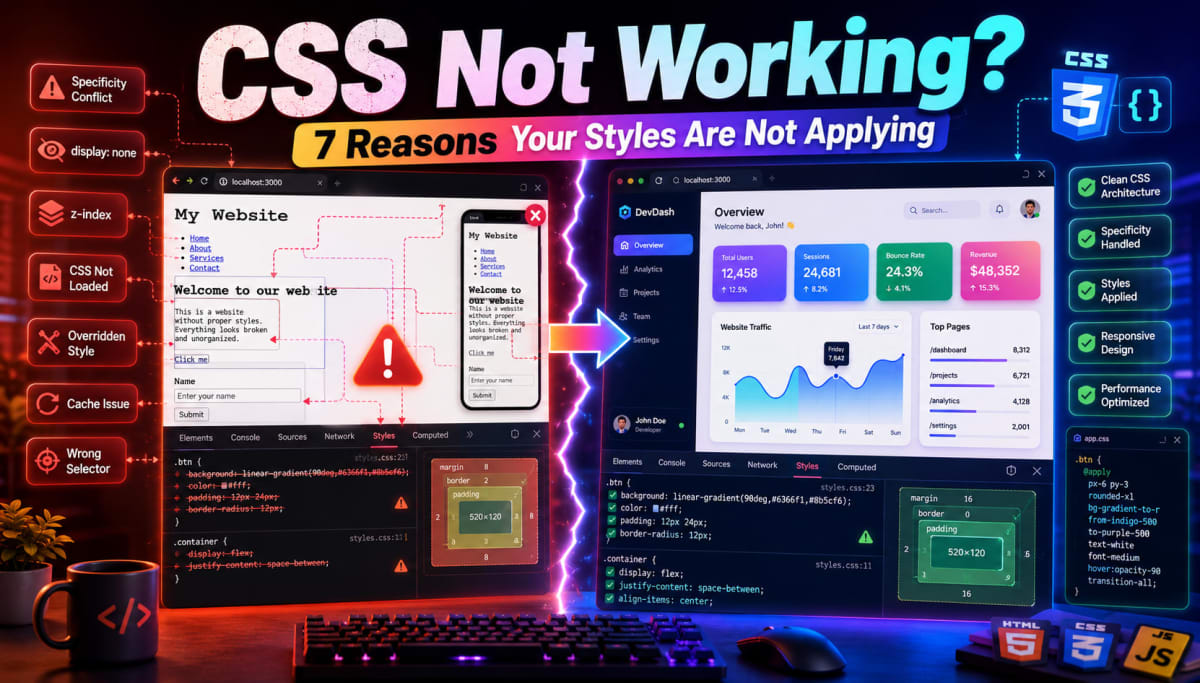
CSS Not Working? 7 Reasons Your Styles Are Not Applying
Skilldham
Engineering deep-dives for developers who want real understanding.
You write a CSS rule. You refresh the page. Nothing changes.
You check the code. It looks perfectly fine. You copy the exact same rule into a different file and it works instantly. You come back to the original and it still does nothing.
This is css not working in its most frustrating form - no error, no warning, just silence. The browser accepts your CSS, renders the page, and quietly ignores everything you wrote.
The cause is almost never the rule itself. It is almost always something else overriding it, blocking it, or preventing it from reaching the element. Here are the seven reasons css stops working and exactly how to fix each one.
CSS Specificity Is Silently Overriding Your Rule
This is the number one reason developers think their css is not working. Specificity is CSS's internal scoring system. When two rules target the same element, the browser does not just use the one that comes last - it uses the one with the higher specificity score, regardless of where it appears in the file.
css
/* Wrong - this rule loses even though it comes second */
.button {
  color: red; /* specificity: 0,1,0 */
}

.container .button {
  color: blue; /* specificity: 0,2,0 - wins */
}

/* .button stays blue no matter what you write here */
css
/* Correct - match or exceed the competing rule's specificity */
.container .button {
  color: red; /* same specificity level - wins because it comes after */
}

/* Or restructure to avoid the conflict entirely */
.button-primary {
  color: red; /* unique class - no conflict */
}
The specificity scoring works like this: inline styles beat everything, then ID selectors, then class and attribute selectors, then element selectors. .container .button scores higher than .button alone because it has two class selectors instead of one.
The fastest way to diagnose this is Chrome DevTools. Open the Styles panel while inspecting an element and look for rules with a strikethrough. The browser is literally showing you which rule lost and why. This is the same diagnostic approach used when debugging why CSS z-index stops working - specificity conflicts are almost always involved there too.
Cascade Order Is Applying the Wrong Rule
When two rules have identical specificity scores, CSS uses whichever one appears later in the stylesheet. This is the cascade - the C in CSS. It is supposed to be predictable, but it becomes unpredictable when you have multiple stylesheets loading in an order you did not intend.
css
/* Wrong - duplicate rules with same specificity */
/* In your main.css */
.button {
  color: red;
}

/* Later in the same file, or in a second stylesheet loaded after */
.button {
  color: blue; /* wins because it comes after */
}

/* You expect red, you get blue, you have no idea why */
css
/* Correct - eliminate duplicate rules */
/* Keep one authoritative rule per selector */
.button {
  color: red;
}

/* If you need variants, use more specific class names */
.button-primary {
  color: red;
}

.button-secondary {
  color: blue;
}
The most common real-world version of this problem is a framework like Tailwind CSS, Bootstrap, or a UI library loading after your custom styles. Their rules override yours not because they are more specific but because they come later in the load order.
Check your HTML head section and your import order. If a framework stylesheet loads after your custom stylesheet, your rules will lose to the framework's rules on identical selectors. Either load your stylesheet after the framework, or use more specific selectors that the framework cannot match.

Your Selector Does Not Match the Actual Element
This one feels embarrassing but it happens to every developer regularly. Your CSS selector targets one thing, your HTML is structured slightly differently, and the browser matches zero elements. Your styles never apply because they are looking for an element that does not exist as you described it.
css
/* Wrong - selector and HTML do not match */

/* CSS: targeting by ID */
#submit-button {
  background: blue;
}

/* HTML: element uses a class, not an ID */
/* <button class="submit-button">Submit</button> */
/* Nothing gets styled - browser finds no match */
css
/* Correct - selector matches the actual HTML */

/* If HTML uses class="submit-button" */
.submit-button {
  background: blue;
}

/* Or fix the HTML to use an ID */
/* <button id="submit-button">Submit</button> */
#submit-button {
  background: blue;
}
Pseudo-class mismatches cause the same problem:
css
/* Wrong - hover on the wrong element */
.nav-item:hover .dropdown {
  display: block;
}
/* HTML: hover target is .nav-link, not .nav-item */

/* Correct - match the actual structure */
.nav-link:hover + .dropdown {
  display: block;
}
The fix is always to open DevTools, click the element directly, and look at exactly what classes and IDs it has. Then check if your CSS selector matches that exact structure. One mismatched class name or one extra nesting level in the selector is enough to break the whole rule silently.
Your CSS File Is Not Actually Loading
Before debugging any CSS rule, the most basic check is whether the stylesheet is even loading. A broken file path produces no error in the browser - it just silently ignores the stylesheet and renders the page without any of your styles.
html
<!-- Wrong - file path does not match actual location -->
<link rel="stylesheet" href="/styles.css">
<!-- File is actually at /assets/css/styles.css -->
<!-- Browser requests /styles.css, gets 404, ignores it -->

<!-- Also wrong - missing leading slash for absolute path -->
<link rel="stylesheet" href="styles.css">
<!-- Works if HTML file and CSS are in the same folder -->
<!-- Breaks when page URL changes depth -->
html
<!-- Correct - path matches actual file location -->
<link rel="stylesheet" href="/assets/css/styles.css">

<!-- In Next.js / React - import in the component or _app.js -->
import './styles.css'
import '../styles/globals.css'
To check this, open Chrome DevTools → Network tab → filter by CSS → refresh the page. Every CSS file the browser attempts to load appears here with its status code. A 404 means the path is wrong. No entry at all means the link tag is missing or malformed.
This same diagnosis - checking the Network tab before anything else - applies when debugging why Next.js builds fail with missing asset errors.
Flexbox and Grid Are Changing How Properties Behave
Some CSS properties behave completely differently depending on whether the element is inside a flex container, a grid container, or normal flow. Your rule is technically applying - it just does not produce the result you expect because the layout context changes the behaviour.
css
/* Wrong mental model - margin: auto behaves differently in flex */

/* Normal flow - margin: auto pushes element to one side */
.element {
  margin: auto; /* centers horizontally in block context */
}

/* Inside flex container - margin: auto absorbs all available space */
.flex-container {
  display: flex;
}
.flex-container .element {
  margin: auto; /* centers in both directions - not what you expected */
}
css
/* Correct - understand layout context and use the right property */

/* To center inside flex container */
.flex-container {
  display: flex;
  justify-content: center; /* horizontal */
  align-items: center;     /* vertical */
}

/* To push one flex item to the end */
.flex-container .last-item {
  margin-left: auto; /* pushes this item to the right edge */
}
Common flex and grid surprises:
css
/* Width on flex children - flex-grow and flex-shrink override width */
.flex-child {
  width: 200px; /* may not work if flex-grow or flex-shrink is active */
  flex: 0 0 200px; /* correct - sets width in flex shorthand */
}

/* Position inside grid - grid placement overrides floats completely */
.grid-item {
  float: left; /* ignored inside a grid container */
  grid-column: 1 / 3; /* use this instead */
}
When css properties seem to stop working, always check what layout system the parent element is using. DevTools Computed panel shows exactly which properties are active and which ones are being overridden by the layout context.
The Browser Cache Is Serving Old CSS
You update your CSS. You refresh. Nothing changes. You check the file on disk and the change is there. The browser is showing you a cached version of the old stylesheet and ignoring your update entirely.
css
/* Wrong - no cache busting strategy */
/* styles.css v1 */
.header {
  background: white;
}

/* You update to v2 */
.header {
  background: black;
}
/* Browser still serves white because it cached styles.css */
html
<!-- Correct - cache busting with query string -->
<link rel="stylesheet" href="/styles.css?v=2">

<!-- Or use a build hash - Next.js, Vite, Webpack do this automatically -->
<link rel="stylesheet" href="/styles.abc123.css">
For immediate debugging without changing code:
Open DevTools
Right-click the refresh button
Select "Empty Cache and Hard Reload"
Or in the Network tab, check "Disable cache" while DevTools is open. This forces fresh requests for every asset on every reload.
In production with Next.js or any modern bundler, this is handled automatically. CSS files get content-based hashes in their filenames, so any change produces a new filename that the browser has never seen before. Caching issues mostly affect developers working with manually linked stylesheets without a build system.
The Property You Are Using Has No Effect in This Context
Some CSS properties simply do not work on certain elements or in certain contexts. The rule is valid CSS, the browser accepts it without error, and nothing happens because the property has no effect on that element type.
css
/* Wrong - properties that don't work on inline elements */
span {
  width: 200px;   /* no effect on inline element */
  height: 100px;  /* no effect on inline element */
  margin-top: 20px; /* no vertical margin on inline elements */
}
css
/* Correct - change display or use appropriate properties */
span {
  display: inline-block; /* now width, height, margin work */
  width: 200px;
  height: 100px;
  margin-top: 20px;
}

/* Or use padding for spacing on inline elements */
span {
  padding: 0 8px; /* horizontal padding works on inline elements */
}
Other common no-effect scenarios:
css
/* z-index with no position set */
.element {
  z-index: 10; /* no effect - needs position: relative/absolute/fixed */
}

/* Correct */
.element {
  position: relative;
  z-index: 10;
}

/* vertical-align on block elements */
div {
  vertical-align: middle; /* no effect on block elements */
}

/* background on visited links - security restriction */
a:visited {
  background: yellow; /* browsers block this for privacy reasons */
}
The MDN CSS property reference lists the formal definition for every property including which element types it applies to. When a property appears to do nothing, checking the formal definition tells you immediately whether it is supposed to work in your context.
Key Takeaway
When css is not working, the browser almost never has a bug. The problem is one of these seven causes every single time.
Specificity conflict - a more specific rule is winning, check DevTools for strikethroughs
Cascade order - a duplicate rule later in the file or a loaded framework is overriding yours
Selector mismatch - your CSS targets an ID but the HTML uses a class, or the nesting is different
File not loading - the path in your link tag does not match the actual file location
Layout context - flexbox and grid change how margin, width, and positioning work
Browser cache - you are seeing old CSS, force a hard refresh or disable cache in DevTools
Wrong context - some properties like width and z-index only work under specific conditions
Opening Chrome DevTools and looking at the Styles panel for the affected element solves 90 percent of css not working problems in under two minutes. The browser shows you exactly which rules are active, which are crossed out, and which selector won.
FAQs
Why is my CSS not working even though the syntax is correct? Correct syntax does not guarantee your rule applies. Another rule with higher specificity is likely overriding it. Open Chrome DevTools, inspect the element, and look at the Styles panel for rules with a strikethrough. The strikethrough shows exactly which rules lost and which one is winning.
How do I fix CSS specificity conflicts? The cleanest fix is to make your selector at least as specific as the competing rule. If .container .button beats .button, use .container .button for your rule too. A better long-term fix is to restructure your CSS to avoid specificity conflicts entirely - use unique class names for unique styles rather than relying on nesting to win specificity battles.
Why is my CSS file not loading on the page? Open DevTools Network tab, filter by CSS, and refresh. If your file shows a 404 status, the path in your link tag is wrong. Check whether the path is relative or absolute and whether it matches where the file actually lives. In Next.js and React, import stylesheets in JavaScript files rather than using link tags in HTML.
Why does margin auto not center my element? The behaviour of margin auto depends on the layout context. In normal block flow, margin auto centers elements horizontally. Inside a flex container, margin auto absorbs all available space in both directions. Inside a grid container, the behaviour changes again. Use justify-content and align-items on the parent flex or grid container for predictable centering.
Why does my CSS update not show after refreshing? The browser is serving a cached version of your stylesheet. Do a hard refresh with Cmd+Shift+R on Mac or Ctrl+Shift+R on Windows. In DevTools, you can check Disable cache in the Network tab to always load fresh assets while DevTools is open. For production, use a build tool that adds content hashes to filenames automatically.
Why does z-index not work on my element? z-index only works on positioned elements - elements with position set to relative, absolute, fixed, or sticky. On elements with the default position value of static, z-index has no effect at all. Add position relative to the element and z-index will start working immediately.
How do I debug CSS that is not working in a flex or grid container? Open DevTools and look at the Computed panel for the affected element. It shows the final calculated value of every property after all rules are applied. For flex and grid layouts, DevTools also has a dedicated flex and grid inspector that shows exactly how items are being placed and sized within the container.