
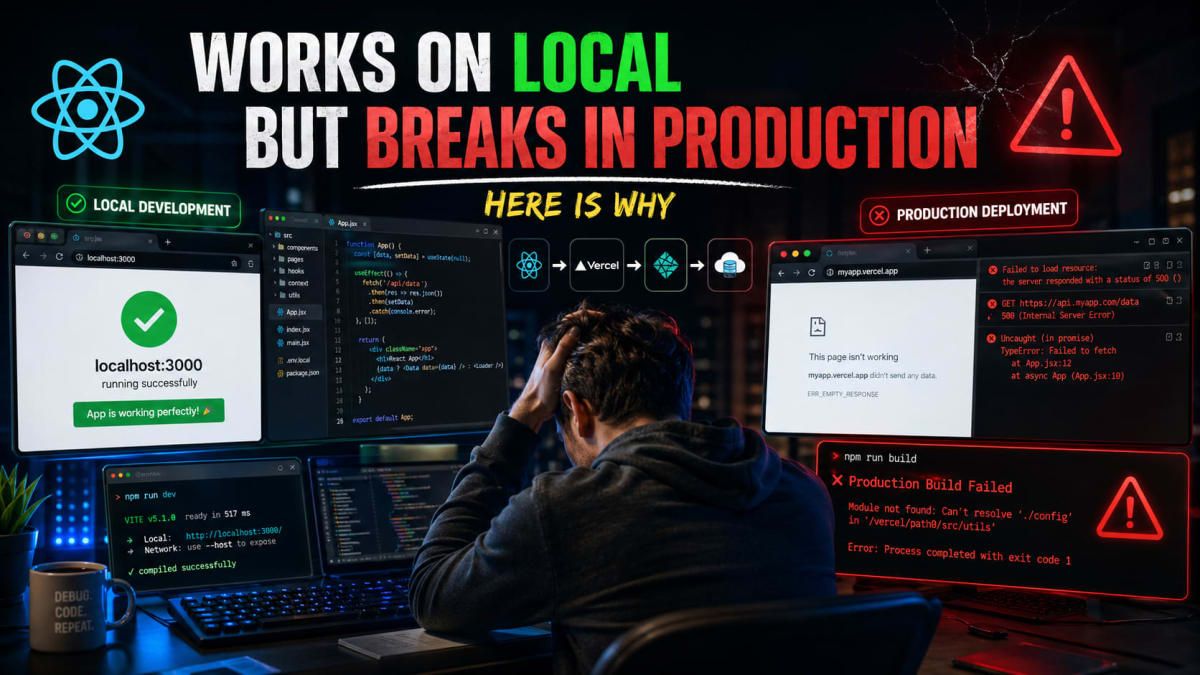
React App Works Locally But Breaks in Production?Here Is Why
Skilldham
Engineering deep-dives for developers who want real understanding.
You test your React app locally. Everything works. You merge the PR. You deploy. And then the app crashes, API calls fail, styles break, or worse - it works perfectly for you but not for your users.
You start doubting React. You start doubting your code. You start doubting everything.
This is one of the most frustrating experiences in frontend development. The React app works locally but breaks in production happens to almost every developer, and the reason is almost never what you think it is.
Production is not your laptop. And React code is far more sensitive to environment differences than most tutorials ever mention.
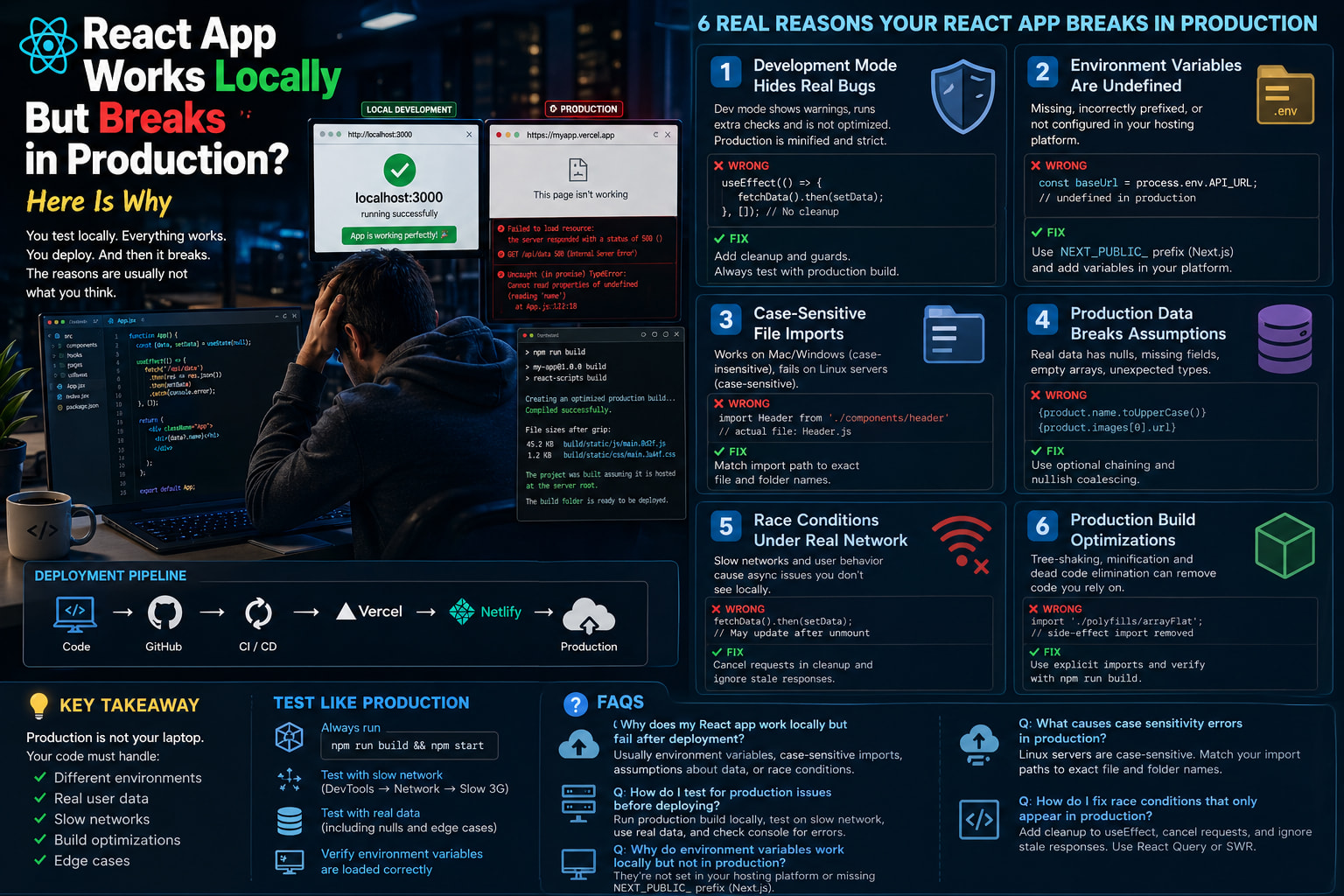
Here are the 6 real reasons your React app breaks in production after working perfectly in development, with exact fixes for each one.
React Development Mode Hides Real Bugs From You
React behaves fundamentally differently in development versus production. This is by design, but it means local testing gives you a false sense of security.
In development mode, React runs extra checks. Strict Mode double-invokes your components and effects to help you catch side effects. Error overlays stop execution and show you friendly messages. Warnings appear in the console for things that would fail silently in production. Performance is not optimized because React prioritizes helpful developer feedback over speed.
In production, all of that disappears. React runs minified bundles, optimized builds, and different execution timing. The helpful warnings that were telling you something was wrong are gone.
jsx
// Wrong - code that "works" in development but fails in production
function UserDashboard() {
  const [data, setData] = useState();

  useEffect(() => {
    fetchUserData().then(setData);
    // No cleanup - causes memory leak in production
    // Strict Mode double-invoke masks this locally
  }, []);

  return <div>{data.name}</div>; // Crashes if data is undefined
}
jsx
// Correct - handles both environments safely
function UserDashboard() {
  const [data, setData] = useState(null);

  useEffect(() => {
    let cancelled = false;

    fetchUserData().then((result) => {
      if (!cancelled) setData(result);
    });

    return () => {
      cancelled = true; // Proper cleanup
    };
  }, []);

  if (!data) return <div>Loading...</div>; // Guard against undefined

  return <div>{data.name}</div>;
}
The fix is to always run a production build locally before deploying. npm run build && npm start gives you the exact environment your users will see. This is the single most important habit in frontend development. If it breaks after npm run build, it will break in production.
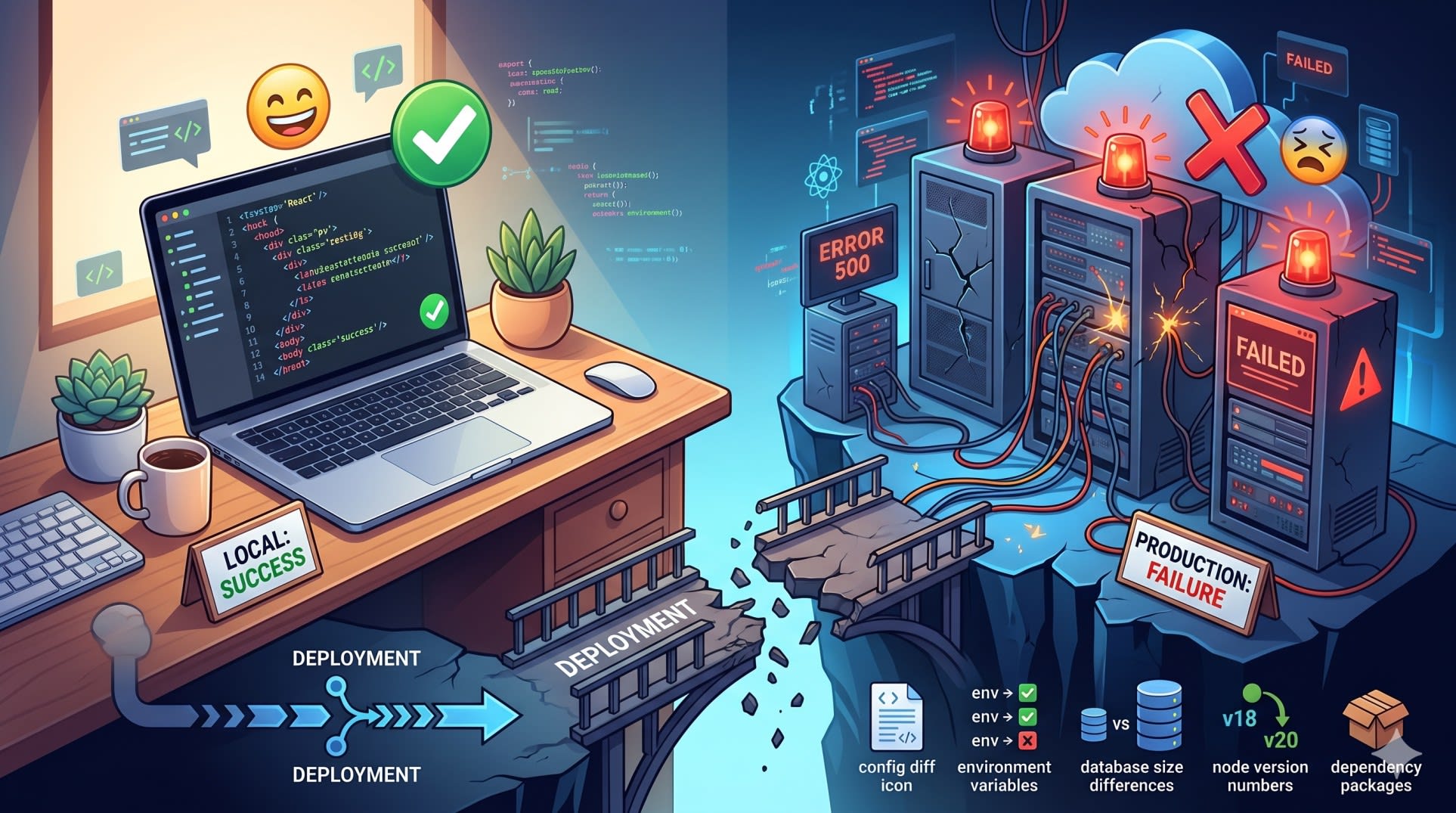
Environment Variables Are Silently Undefined in Production
This is the most common cause of a React app working locally but breaking in production, and it is completely silent. No error. No warning. The variable is just undefined and your app behaves as if the feature does not exist.
Locally you have .env files with all your variables set. You test against staging APIs. Everything works. In production, environment variables need to be explicitly configured in your hosting platform, and the rules for how they work are different.
jsx
// Wrong - variable works locally but is undefined in production
function ApiService() {
  const baseUrl = process.env.API_URL; // Missing NEXT_PUBLIC_ prefix
  // OR: not set in Vercel/Netlify environment variables
  // OR: set as runtime variable but accessed at build time

  return fetch(`${baseUrl}/users`); // baseUrl is undefined in production
}
jsx
// Correct - three things checked before deploying
// 1. Next.js: browser-accessible vars need NEXT_PUBLIC_ prefix
const baseUrl = process.env.NEXT_PUBLIC_API_URL;

// 2. Always add a fallback for critical values
const apiUrl = process.env.NEXT_PUBLIC_API_URL || 'https://api.yourapp.com';

// 3. Log it during development to verify
if (process.env.NODE_ENV === 'development') {
  console.log('API URL:', process.env.NEXT_PUBLIC_API_URL);
}
Before every deployment, check three things. First, every browser-accessible variable in Next.js must have the NEXT_PUBLIC_ prefix. Second, every variable in your .env file must also be added in your hosting platform settings (Vercel, Netlify, Railway). Third, build-time variables and runtime variables are different. If you are unsure which one you need, the Next.js environment variables documentation explains the exact difference.
Case-Sensitive File Imports Break on Linux Servers
This one is painful because it works perfectly on your machine for months and then silently breaks the moment you deploy.
macOS and Windows file systems are case-insensitive by default. You can import ./components/header and the file Header.js will be found without any error. Linux file systems, which is what almost every production server runs, are case-sensitive. The same import fails with a module not found error.
jsx
// Wrong - works on Mac/Windows, fails on Linux production server
import Header from './components/header'; // lowercase h
import UserCard from './Components/UserCard'; // capital C in Components
import { formatDate } from './Utils/dateHelper'; // capital U

// Actual files are:
// ./components/Header.js
// ./components/UserCard.js
// ./utils/dateHelper.js
jsx
// Correct - import path matches exact file name and folder name
import Header from './components/Header'; // matches Header.js
import UserCard from './components/UserCard'; // matches UserCard.js
import { formatDate } from './utils/dateHelper'; // matches utils folder
The fix is to be consistent with your naming convention and to match imports exactly. If you use PascalCase for component files, always import with PascalCase. If you use camelCase for utility files, always import with camelCase. Running your production build on Linux locally or using a linter rule for consistent imports catches these before deployment. This is also one of the reasons Next.js builds fail on Vercel with module not found errors that never showed up locally.
Production Data Exposes Assumptions in Your Code
Locally you test with small, clean, perfect data. A mock response with exactly the fields you expect, exactly the values you need, exactly the format you wrote your component for. Production data is none of those things.
Real users have edge cases. They have null fields, empty strings, missing optional values, arrays with zero items, numbers where you expected strings. Your component never sees this locally. In production, it crashes for the users with unusual data while working perfectly for everyone else.
jsx
// Wrong - assumes data always exists and has the right shape
function ProductList({ products }) {
  return (
    <div>
      {products.map((product) => (
        <div key={product.id}>
          <h3>{product.name.toUpperCase()}</h3> // crashes if name is null
          <p>{product.price.toFixed(2)}</p> // crashes if price is undefined
          <img src={product.images[0].url} /> // crashes if images is empty
        </div>
      ))}
    </div>
  );
}
jsx
// Correct - handles real production data shapes
function ProductList({ products = [] }) {
  if (!products.length) return <div>No products found</div>;

  return (
    <div>
      {products.map((product) => (
        <div key={product.id}>
          <h3>{product.name?.toUpperCase() ?? 'Unknown Product'}</h3>
          <p>{product.price != null ? product.price.toFixed(2) : 'Price unavailable'}</p>
          {product.images?.[0]?.url && (
            <img src={product.images[0].url} alt={product.name ?? 'Product'} />
          )}
        </div>
      ))}
    </div>
  );
}
The mental shift is to treat every piece of data from an API as potentially null, undefined, or wrong-shaped. Optional chaining (?.) and nullish coalescing (??) are not just syntax sugar. They are production safety nets. Use them for every field you did not write yourself.
Race Conditions Appear Under Real Network Conditions
Your local development environment has a fast localhost connection. API calls complete in milliseconds. Component state always updates in the right order. Users on mobile networks in real traffic conditions have none of that.
Slow networks expose race conditions that your tests never catch. A component unmounts before the fetch completes, and React tries to update state on an unmounted component. A user navigates away and back quickly, firing two API calls, and the first response arrives after the second. Data renders briefly before getting replaced with an error. These issues only appear under real conditions.
jsx
// Wrong - race condition visible on slow networks
function SearchResults({ query }) {
  const [results, setResults] = useState([]);

  useEffect(() => {
    searchApi(query).then((data) => {
      setResults(data); // May update after component unmounts
      // Or may be overwritten by a newer query's response
    });
  }, [query]);

  return <ResultList items={results} />;
}
jsx
// Correct - handles both unmount and stale responses
function SearchResults({ query }) {
  const [results, setResults] = useState([]);

  useEffect(() => {
    let cancelled = false;

    searchApi(query).then((data) => {
      if (!cancelled) setResults(data); // Ignore if query changed or component unmounted
    });

    return () => {
      cancelled = true; // Cancel on cleanup
    };
  }, [query]);

  return <ResultList items={results} />;
}
You can simulate slow networks in Chrome DevTools under the Network tab. Set it to Slow 3G and test your app. Every race condition that exists in production will show up. If you use React Query or SWR for data fetching, these libraries handle cancellation and deduplication for you, which is one reason they are worth the dependency. Understanding why React useEffect not working often comes back to this same cleanup pattern.
Production Build Optimizations Remove Code You Depend On
The production build does things development mode never does. It minifies bundles, removes dead code, tree-shakes unused modules, and optimizes chunk splitting. Most of the time this is purely good. But if your code has hidden assumptions about execution order, implicit side effects, or global state, the optimizer can break things in ways that are very hard to trace.
jsx
// Wrong - relies on import side effect that gets tree-shaken
// Somewhere in your code:
import './polyfills/arrayFlat'; // Adds Array.flat polyfill via side effect
// Production build tree-shakes this because nothing "uses" the import

// Elsewhere:
const flat = [1, [2, 3]].flat(); // Works in modern browsers, crashes in others
jsx
// Correct - explicit polyfill usage that cannot be tree-shaken
import { flatArray } from './polyfills/arrayFlat'; // Named import used explicitly

// Or use the polyfill in a way that is clearly consumed:
const flat = flatArray([1, [2, 3]]);

// Or test the production build with:
npm run build
npm start
// Then open in a browser that matches your minimum support target
The pattern to avoid is any code that relies on being imported but does not export anything you use. Side-effectful imports are fragile under optimization. If you need a polyfill or a global setup, make sure it is called explicitly in your entry point where the optimizer cannot miss it.
Key Takeaway
When your React app works locally but breaks in production, the problem is almost never React. The problem is assumptions your code makes that only hold true in the ideal conditions of local development.
Remember these six causes:
Development mode hides bugs that production exposes - always run npm run build before deploying
Environment variables need the right prefix and must be configured in your hosting platform
File import case sensitivity fails on Linux servers - match your imports exactly to your file names
Production data has nulls, missing fields, and edge cases your mock data never had
Race conditions only appear on real network speeds - use cleanup functions in every useEffect
Production build optimizations remove side-effectful imports - be explicit about what your code needs
Testing your production build locally before every deployment catches most of these before users ever see them. The goal is not to make your app perfect locally. The goal is to make it resilient to everything production throws at it. This is the same mindset behind why React performance optimization fails in production - local testing simply cannot replicate real conditions.
FAQs
Why does my React app work locally but fail after deployment? The most common reasons are environment variables not configured in your hosting platform, file import paths with wrong casing that fail on Linux servers, and code that assumes data is always the right shape. Run npm run build && npm start locally to catch most of these before deploying.
How do I test my React app for production issues before deploying? Run npm run build followed by npm start to test the actual production bundle locally. In Chrome DevTools, use the Network tab set to Slow 3G to expose race conditions. Use real API data instead of mocks. Test with null values, empty arrays, and missing fields in your test data.
Why do environment variables work locally but not in production? Two reasons. First, your .env file is not deployed - you must manually add every variable in your hosting platform settings (Vercel, Netlify, Railway). Second, in Next.js, variables that need to be accessible in the browser must have the NEXT_PUBLIC_ prefix. Without it, the variable is undefined on the client side.
What causes case sensitivity errors in React production deployments? Local development on macOS or Windows uses a case-insensitive file system. You can import ./components/header and it finds Header.js without error. Production servers run Linux, which is case-sensitive. The same import fails with module not found. Match your import paths exactly to your actual file and folder names.
How do I fix race conditions in React that only appear in production? Add a cleanup function to every useEffect that makes async calls. Use a cancelled boolean flag that gets set to true in the cleanup, and check it before calling setState. This prevents state updates after the component unmounts or after a newer version of the effect has started. Libraries like React Query handle this automatically.