
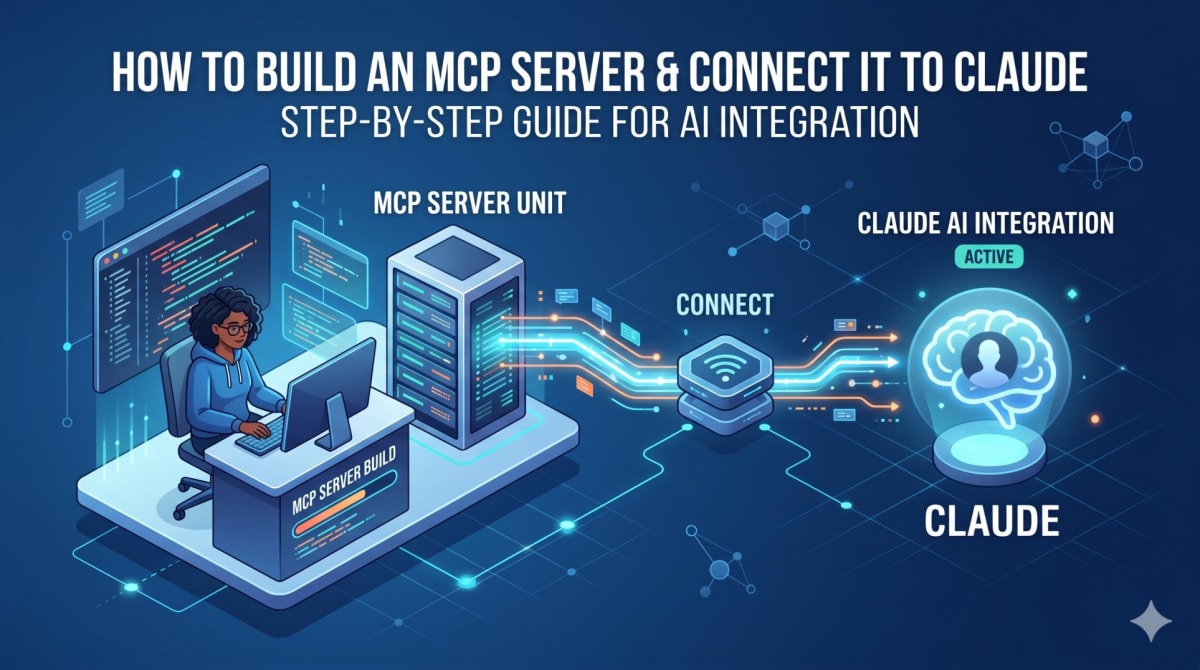
How to Build an MCP Server and Connect It to Claude
Skilldham
Engineering deep-dives for developers who want real understanding.
You ask Claude a question. Claude gives you a confident answer. The answer is wrong - because Claude was guessing.
This is the core problem with using AI on top of your own data. Claude does not know your database. It does not know your users. It does not know anything about your specific application unless you tell it - every single time.
MCP fixes this. Model Context Protocol is a standard that lets Claude call tools you write - functions that read your real database, call your real APIs, and return real data. No guessing. No hallucination. Real answers from real data.
This post walks through exactly how to build an MCP server in Node.js and connect it to Claude Desktop. By the end you will have a working server that reads a live database and lets Claude answer questions about it accurately.
How to Build an MCP Server - What You Are Actually Building
Before writing code, understand what an MCP server actually is.
An MCP server is a Node.js process that exposes tools. Each tool is a function with a name, a description, and a handler. Claude Desktop reads the tool descriptions and decides which tools to call based on what the user asks. The tool runs, reads your database, and returns plain text. Claude uses that text to generate its answer.
The communication happens through stdin and stdout - a simple pipe between Claude Desktop and your server. No HTTP server needed. No ports. No networking. Just a process that Claude Desktop starts and talks to directly.
The stack for this tutorial is Node.js v20, the official MCP SDK from Anthropic, Prisma for database queries, Zod for parameter validation, and dotenv for environment variables.
How to Build an MCP Server - Project Setup
Start with a fresh directory.
bash
mkdir munshi-mcp
cd munshi-mcp
npm init -y
npm pkg set type="module"
Setting type to module enables ES module syntax - import instead of require. The MCP SDK requires this.
Install the dependencies.
bash
npm install @modelcontextprotocol/sdk zod @prisma/client prisma dotenvThe MCP SDK is Anthropic's official package. Zod validates tool parameters. Prisma connects to the database. Dotenv loads environment variables from a .env file.
Create a .env file with your database connection string.
DATABASE_URL="your_database_connection_string_here"Never hardcode database credentials in source code. Always use environment variables.
How to Build an MCP Server - Writing the Server
Create index.js. The first thing to do is load environment variables — this must happen before any other imports.
javascript
import * as dotenv from "dotenv";
dotenv.config({ quiet: true });

import { McpServer } from "@modelcontextprotocol/sdk/server/mcp.js";
import { StdioServerTransport } from "@modelcontextprotocol/sdk/server/stdio.js";
import { z } from "zod";
import { PrismaClient } from "@prisma/client";
McpServer is the main class. StdioServerTransport handles the communication pipe between Claude Desktop and your server. quiet: true on dotenv suppresses extra output that would break the stdio protocol.
Set up Prisma and create the server instance.
javascript
const prisma = new PrismaClient({
  datasources: {
    db: {
      url: process.env.DATABASE_URL,
    },
  },
});

const server = new McpServer({
  name: "munshi-mcp",
  version: "1.0.0",
});
The server name is how Claude Desktop identifies your MCP server in its connector list.
Adding Tools - The Core of How to Build an MCP Server
Tools are what make MCP useful. Each tool has three parts: a name, a description, and a handler function.
The description is the most important part. Claude reads descriptions to decide which tool to call. A vague description means Claude will call the wrong tool or none at all. Write descriptions that are specific and match the natural language questions users will ask.
Here is the first tool -- a monthly expense summary.
javascript
server.tool(
  "get_monthly_expenses",
  "Get the current month expenses summary for a user",
  {
    userId: z.string().describe("The ID of the user to get expenses for"),
  },
  async ({ userId }) => {
    const now = new Date();
    const startDate = new Date(now.getFullYear(), now.getMonth(), 1);
    const endDate = new Date(
      now.getFullYear(),
      now.getMonth() + 1,
      0,
      23,
      59,
      59,
    );

    const expenses = await prisma.expense.findMany({
      where: {
        userId,
        date: {
          gte: startDate,
          lte: endDate,
        },
      },
      include: {
        SubCategory: {
          include: {
            Category: true,
          },
        },
      },
      orderBy: { date: "desc" },
    });

    const total = expenses.reduce(
      (sum, expense) => sum + Number(expense.amount),
      0,
    );

    const categoryMap = {};
    for (const e of expenses) {
      const cat = e.SubCategory?.Category?.name || "General";
      categoryMap[cat] = (categoryMap[cat] || 0) + Number(e.amount);
    }

    const breakdown = Object.entries(categoryMap)
      .sort((a, b) => b[1] - a[1])
      .map(([cat, amt]) => `${cat}: Rs${amt.toFixed(2)}`)
      .join("\n");

    const summary = `Total expenses for this Month: Rs.${total.toFixed(2)}
Category Breakdown:
${breakdown}
Total Transactions: ${expenses.length}`;

    return {
      content: [{ type: "text", text: summary }],
    };
  },
);
Several things to notice here. The date range calculation covers the full current month from first day to last second. Prisma fetches expenses with their subcategory and category relationships included. The result is formatted as plain text -- not JSON, not an object. Claude reads this text and uses it to generate its answer. The cleaner the text, the better Claude's answer will be.
The MCP response format is always an object with a content array containing items with type and text fields.
The second tool fetches the top five expenses by amount.
javascript
server.tool(
  "get_top_expenses",
  "Get the top 5 expenses for a user in the current month",
  {
    userId: z.string().describe("The ID of the user to get expenses for"),
  },
  async ({ userId }) => {
    const now = new Date();
    const startDate = new Date(now.getFullYear(), now.getMonth(), 1);
    const endDate = new Date(
      now.getFullYear(),
      now.getMonth() + 1,
      0,
      23,
      59,
      59,
    );

    const expenses = await prisma.expense.findMany({
      where: {
        userId,
        date: {
          gte: startDate,
          lte: endDate,
        },
      },
      orderBy: { amount: "desc" },
      take: 5,
    });

    const list = expenses
      .map(
        (e, i) => `${i + 1}. ${e.title} -- Rs.${Number(e.amount).toFixed(2)}`,
      )
      .join("\n");

    return {
      content: [
        {
          type: "text",
          text: "Top 5 expenses for this month:\n" + list,
        },
      ],
    };
  },
);
The key differences from the first tool: orderBy sorts by amount descending, take: 5 limits results to five, and no category include is needed since only titles and amounts matter here.
Starting the Server
javascript
async function main() {
  const transport = new StdioServerTransport();
  await server.connect(transport);
  console.error("MCP Server started on stdio transport");
}

main().catch(console.error);
One critical detail: use console.error not console.log. MCP communicates through stdout. Any console.log output goes to stdout and breaks the protocol -- Claude Desktop receives corrupted data and the server fails silently. console.error writes to stderr which is separate from the MCP communication channel.
Test the server runs without errors.
bash
npx prisma db pull
npx prisma generate
node index.js
You should see "MCP Server started on stdio transport" in the terminal. If you see this, the server is working.
Connecting to Claude Desktop
Claude Desktop reads MCP server configuration from a JSON file. Open it in your editor.
bash
code ~/Library/Application\ Support/Claude/claude_desktop_config.jsonAdd your server to the mcpServers object.
json
{
  "mcpServers": {
    "munshi-mcp": {
      "command": "node",
      "args": ["/full/path/to/your/munshi-mcp/index.js"]
    }
  }
}
Use the full absolute path to your index.js file. Relative paths do not work here. Save the file and restart Claude Desktop completely -- quit with Cmd+Q and reopen.
After restarting, click the plus icon in the chat input, go to Connectors, and toggle your server on. If the toggle turns blue, the server connected successfully.
For more on how the RAG system works that powers this -- read the previous post on how I added AI to Munshi for under Rs.500 a month.
Testing the MCP Server
Type a message in Claude Desktop that matches your tool descriptions.
Get my monthly expenses. My userId is your-user-id-hereClaude reads the tool descriptions, identifies that get_monthly_expenses matches the request, calls it with the userId parameter, receives the expense summary text, and generates a response using that real data.
When it works you will see "Loaded tools, used your-server-name integration" above Claude's response. Claude called your tool, read your database, and answered with real numbers.
This is the core difference between a standard AI chat and an MCP-powered one. Claude is not guessing or hallucinating. It has actual data to work with.
For the official MCP specification and additional transport options, the Model Context Protocol documentation covers every detail of the protocol.
For more on building the Munshi app that this MCP server connects to, read how I built a personal finance tracker from scratch in React Native.
Key Takeaway
Building an MCP server comes down to four things.
Set up a Node.js project with the MCP SDK and type set to module. Write tools with clear, specific descriptions -- Claude uses these to decide which tool to call. Return plain text from tool handlers, not JSON objects. Use console.error never console.log inside MCP servers or you will break the stdio protocol silently.
Once connected to Claude Desktop, Claude can read your real database and give accurate answers based on actual data. No prompt engineering required. No hardcoded context. Just tools that do real work.
FAQs
How to build an MCP server in Node.js from scratch? Create a Node.js project with type set to module in package.json. Install @modelcontextprotocol/sdk, zod, and any database library you need. Create an McpServer instance, define tools using server.tool(), connect a StdioServerTransport, and run the file with Node. The full setup takes under thirty minutes.
What is the difference between MCP tools and regular API endpoints? Regular API endpoints require HTTP requests with authentication, headers, and JSON parsing. MCP tools are functions that Claude calls directly through a stdio pipe. No server port, no HTTP, no request handling. Claude decides which tool to call based on the tool description and the user's message -- the developer does not need to write any routing logic.
Why use console.error instead of console.log in an MCP server? MCP uses stdout as the communication channel between Claude Desktop and your server. Any console.log output goes to stdout and gets mixed into the MCP protocol data, corrupting the communication. Claude Desktop receives invalid data and the server appears to fail with no clear error message. Always use console.error for any logging -- it writes to stderr which is completely separate from the MCP channel.
Does an MCP server work with any database? Yes. The MCP server is just a Node.js process. You can use any database library inside your tool handlers -- Prisma, Mongoose, raw SQL with pg, Redis, or anything else. The database connection happens inside the tool function the same way it would in any Node.js application. MCP does not care what data source you use as long as the tool returns a valid response object.
What happens if an MCP tool throws an error? Unhandled errors in tool handlers will crash the MCP server process. Claude Desktop will show a connection error. Wrap tool handlers in try-catch blocks and return error messages as text content rather than throwing. This keeps the server running and gives Claude something useful to tell the user instead of a silent failure.